June EQ MAJOR Release Updates!
The following features and fixes are now live in EQ.
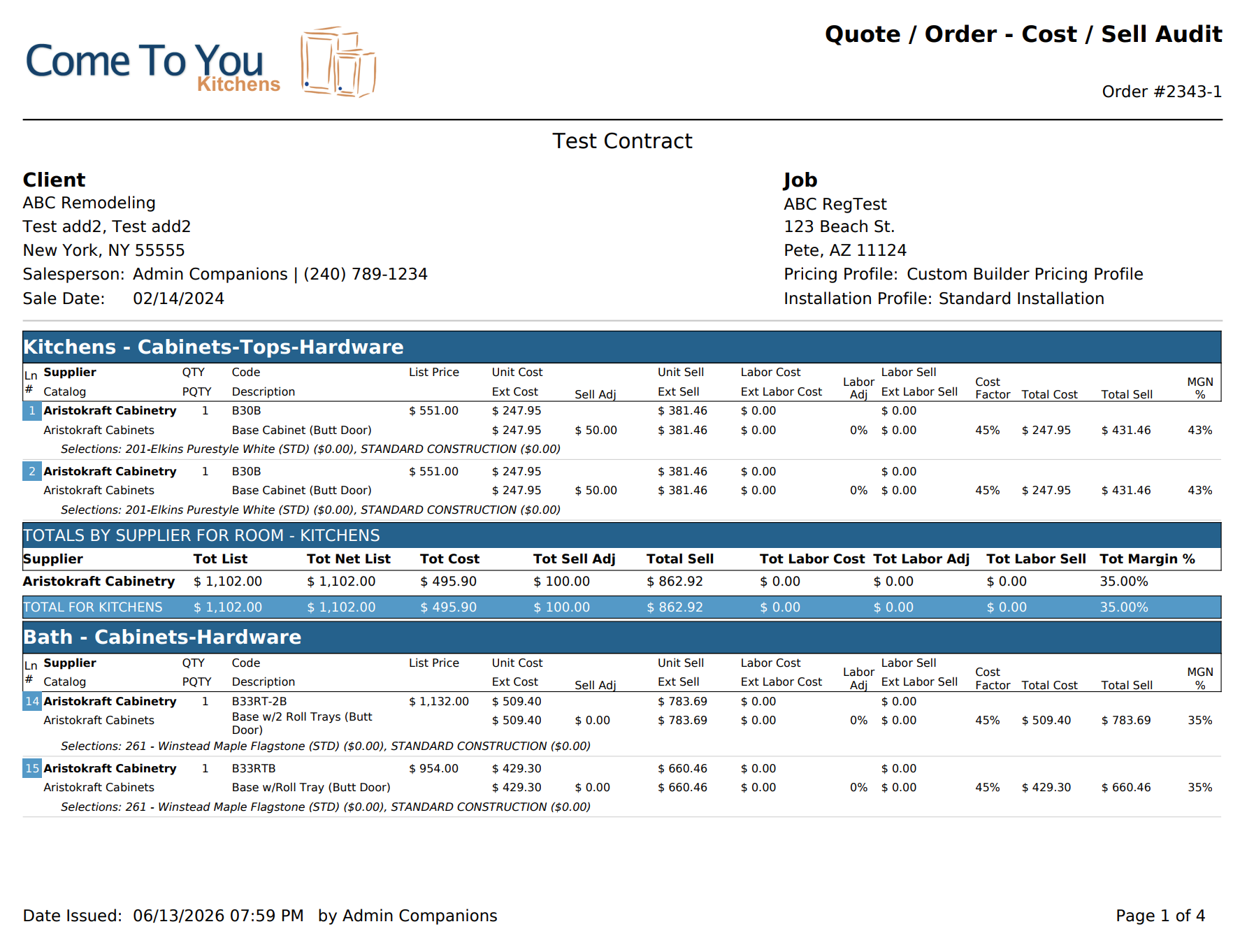
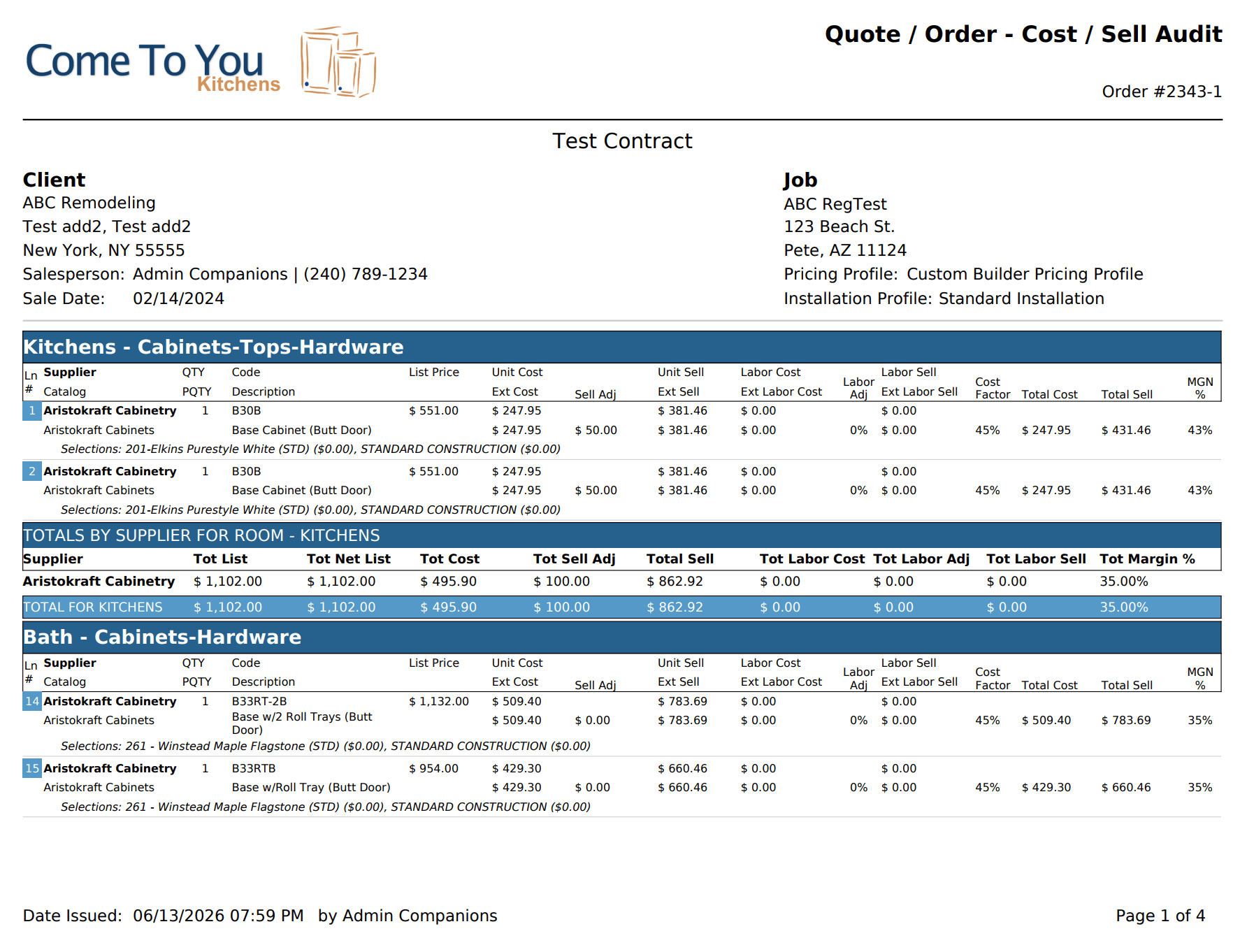
1) New Line Item Printable Audit Report!
If you ever tried to use the “Audit Report” on the pricing tab, you got lost in the confusion. Now EQ has a line item Audit report that makes sense, and is not only readable, but printable! It’s in the order printouts / internal tab, and it’s called “Line Item Audit – Cost / Sell Report”. It shows all the numbers for every line item so you can really dig into how EQ came up with the numbers in every detail.
2) Installers Have Been Added to Purchase Orders
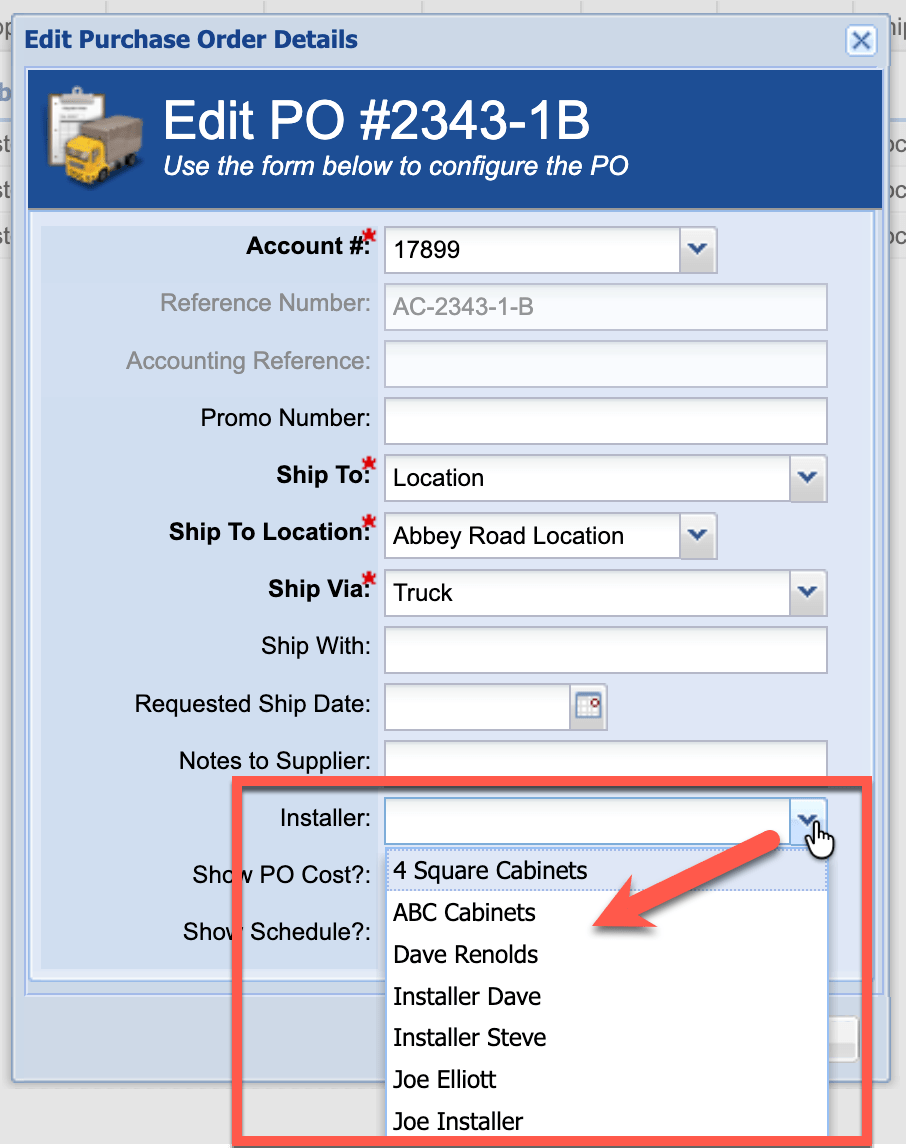
You can now select an Installer to be assigned to any Purchase Order. There’s a new selection box when you edit a PO where you can select the desired Installer.
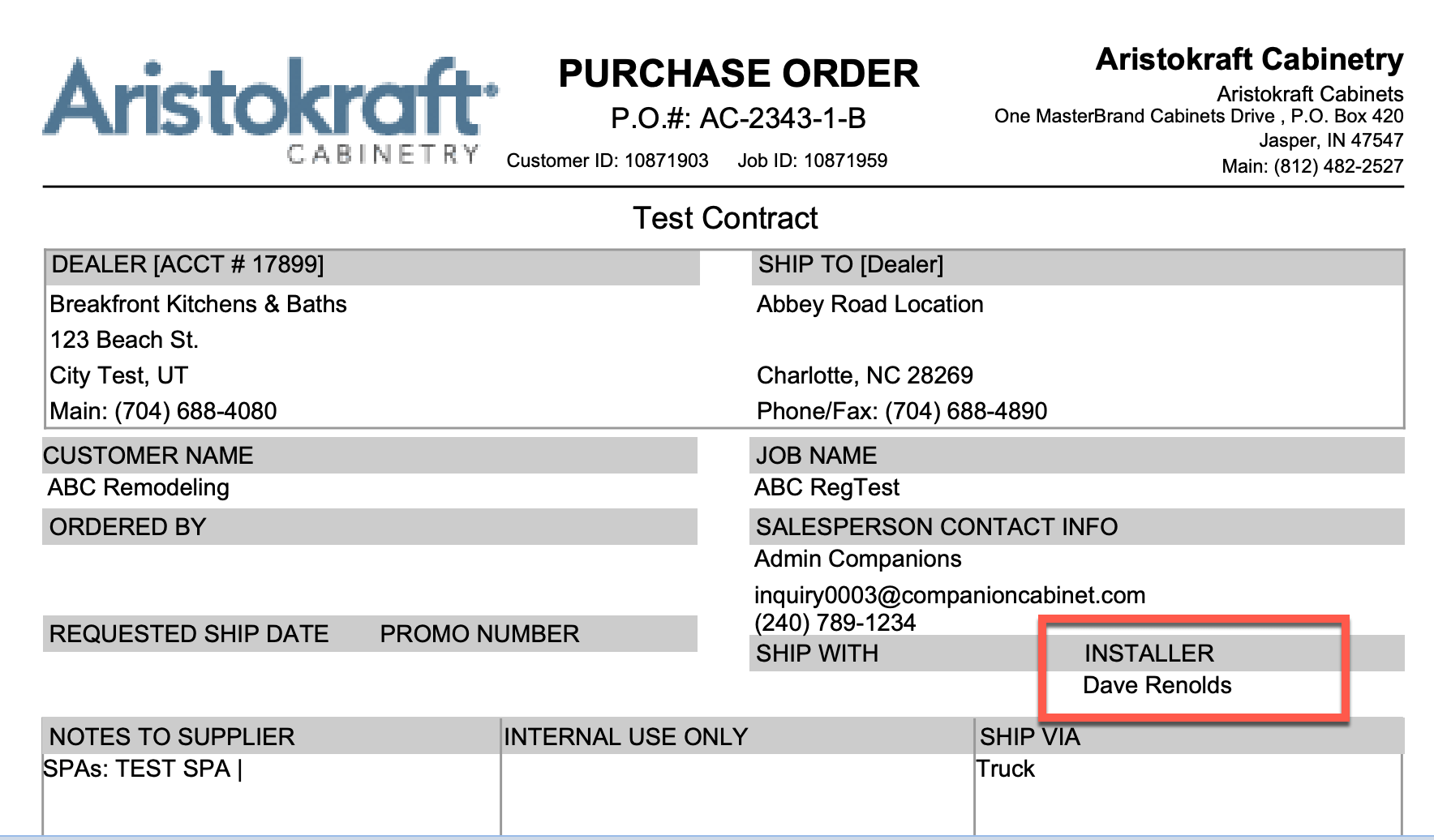
Then on the PO it shows a new section at the top called “Installer” with the name of the Installer shown.
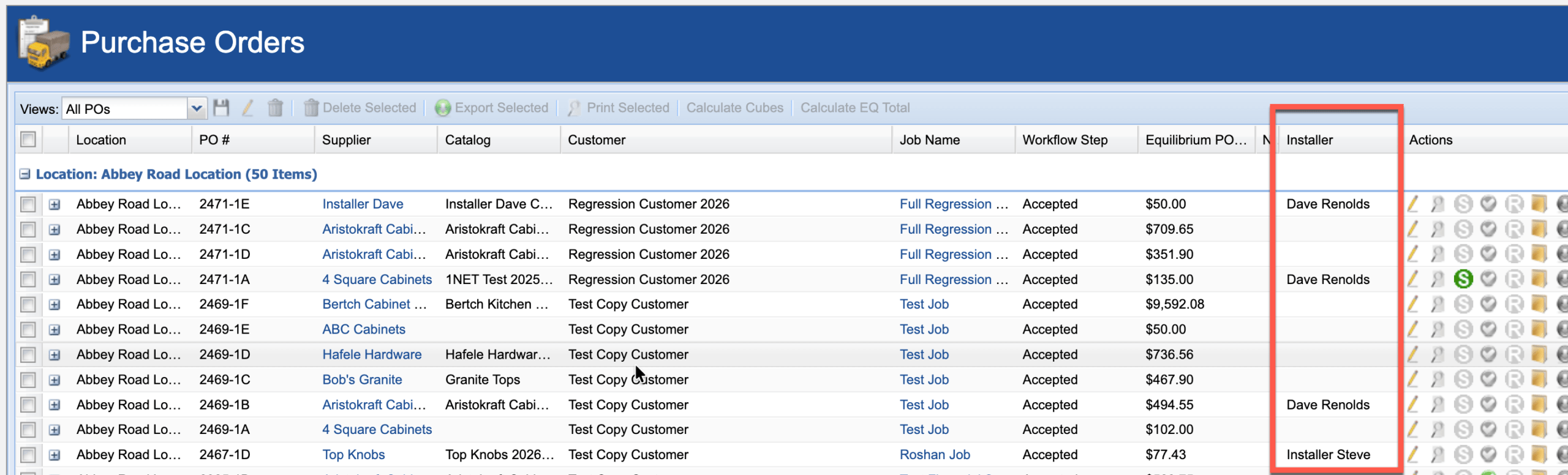
There is also a new column on the Purchasing tab inside an Order, AND in the Purchase Order List to show the Installer assigned to the PO:
3) Installers Notes Have Been Added to Setup and Purchase Orders
Speaking of Installers, you can now have your company’s “Installer Notes” show on the PO’s you give to your Installers. There are 2 parts to this:
First – There’s a new “PO Notes” section in System Configuration where you can create your Installer notes you want to show on Installer PO’s.
Here you see we’ve created 3 different notes that will show on PO’s in 3 sections. You can have as many as you want to create with whatever content you put in them.
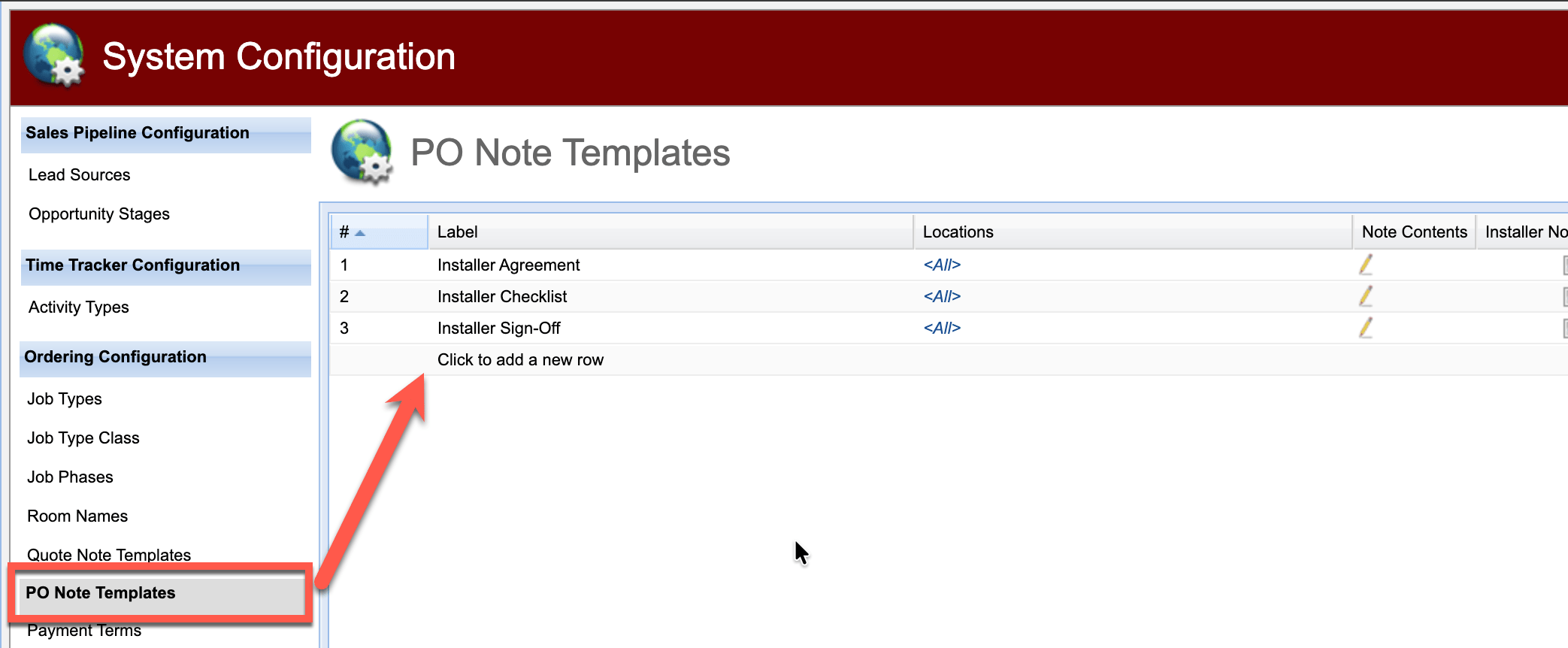
When there are PO notes active as shown, they will show automatically on ANY PO that has an Installer selected. NOTE: these notes DO NOT SHOW on the PO if no Installer is selected. These are only for PO’s with an Installer.
They will show like this on the bottom of the PO: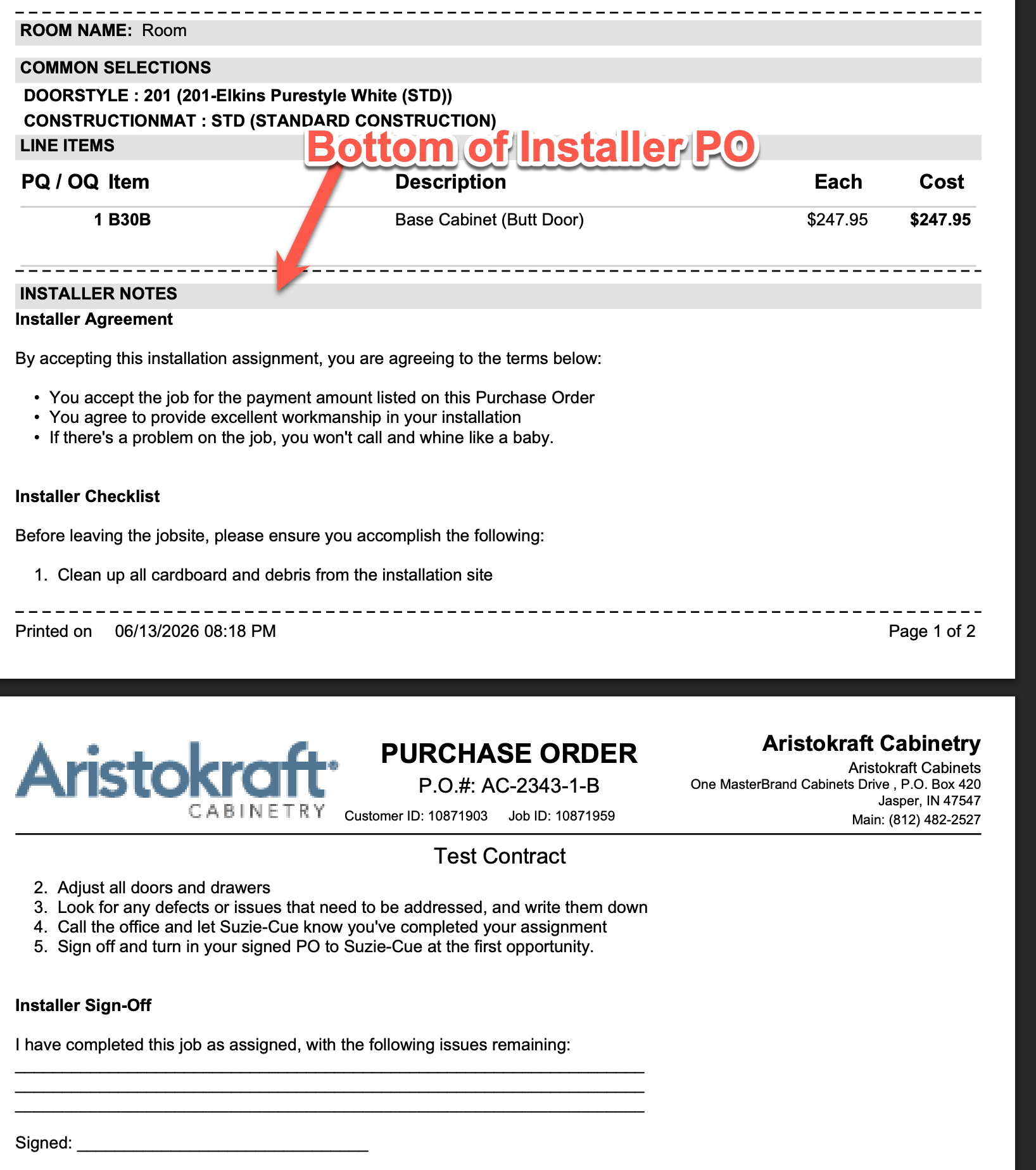
4) Purchase Orders Now Show the Room Name on Them
If your Purchase Order contains items that are ALL in the same room, the PO will now show the Room Name at the top section:

5) New Purchase Order Rule – “By Room”
When you create PO’s you can choose the rule you create them by (ex. by doorstyle, by catalog, etc.). Now there’s a new option to create the PO “by Room”. This means that if you have 20 cabinets that are in 3 different Rooms on your line items, if you select the “PO By Room” rule, it will create 3 different PO’s. One for each Room.
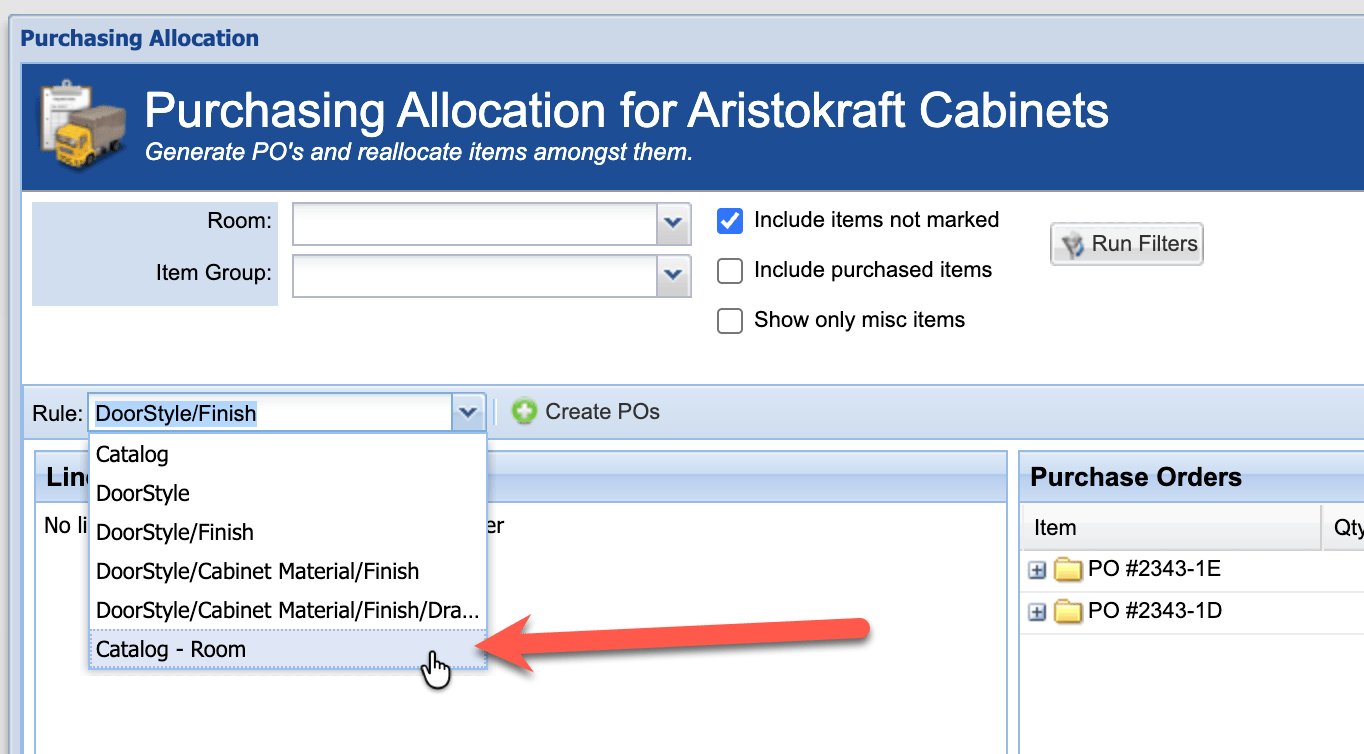
NOTE: This rule can’t be combined with another rule like “By Doorstyle/Finish”. It’s a rule by itself. So if you choose this rule and you have 10 cabinets in 2 rooms but they have 3 different doorstyles, it will not separate PO’s by doorstyle. You’ll have 2 PO’s – one per room.
6) New Customer / Job Filter When Printing Calendar Events
We’ve added a Customer / Job(s) filter when printing your Calendar. Now you can print it just for one customer and one or multiple jobs.

NOTE: If you don’t select any Job(s), it will print all Jobs for the selected Customer. If you just want specific Jobs for that Customer printed, it will include whichever Jobs you select.
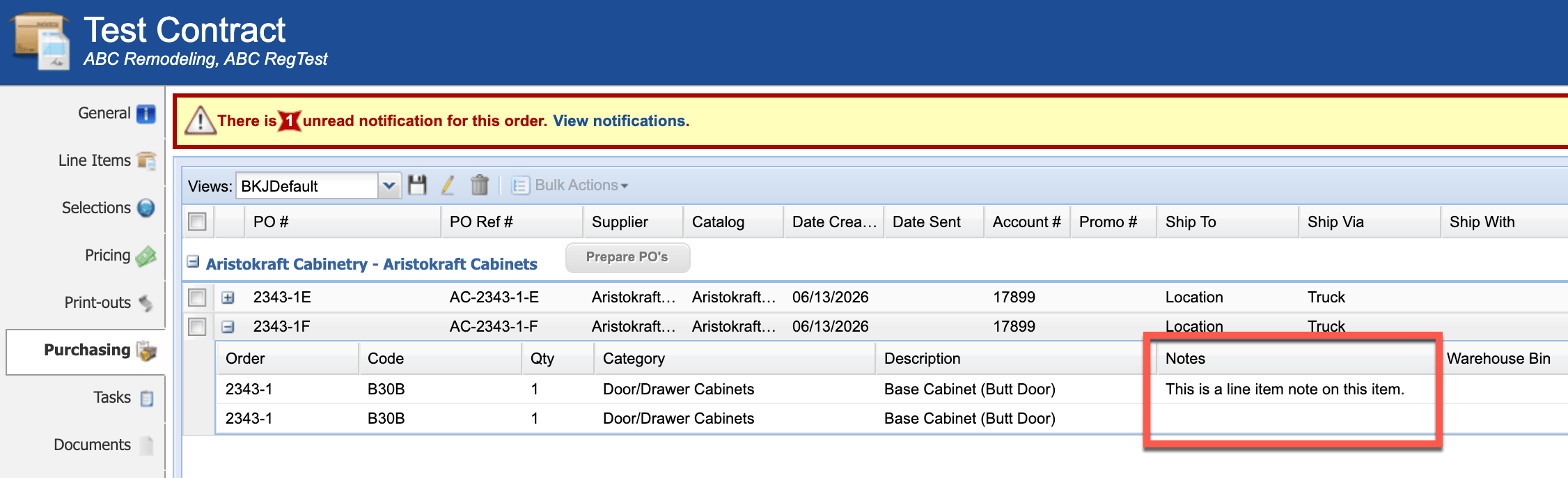
7) New Column on PO Lines Showing the Line Item Notes
When you expand out a Purchase Order to see the Line Items on it, you can now see a column that shows you the Line Item notes on that Line Item.
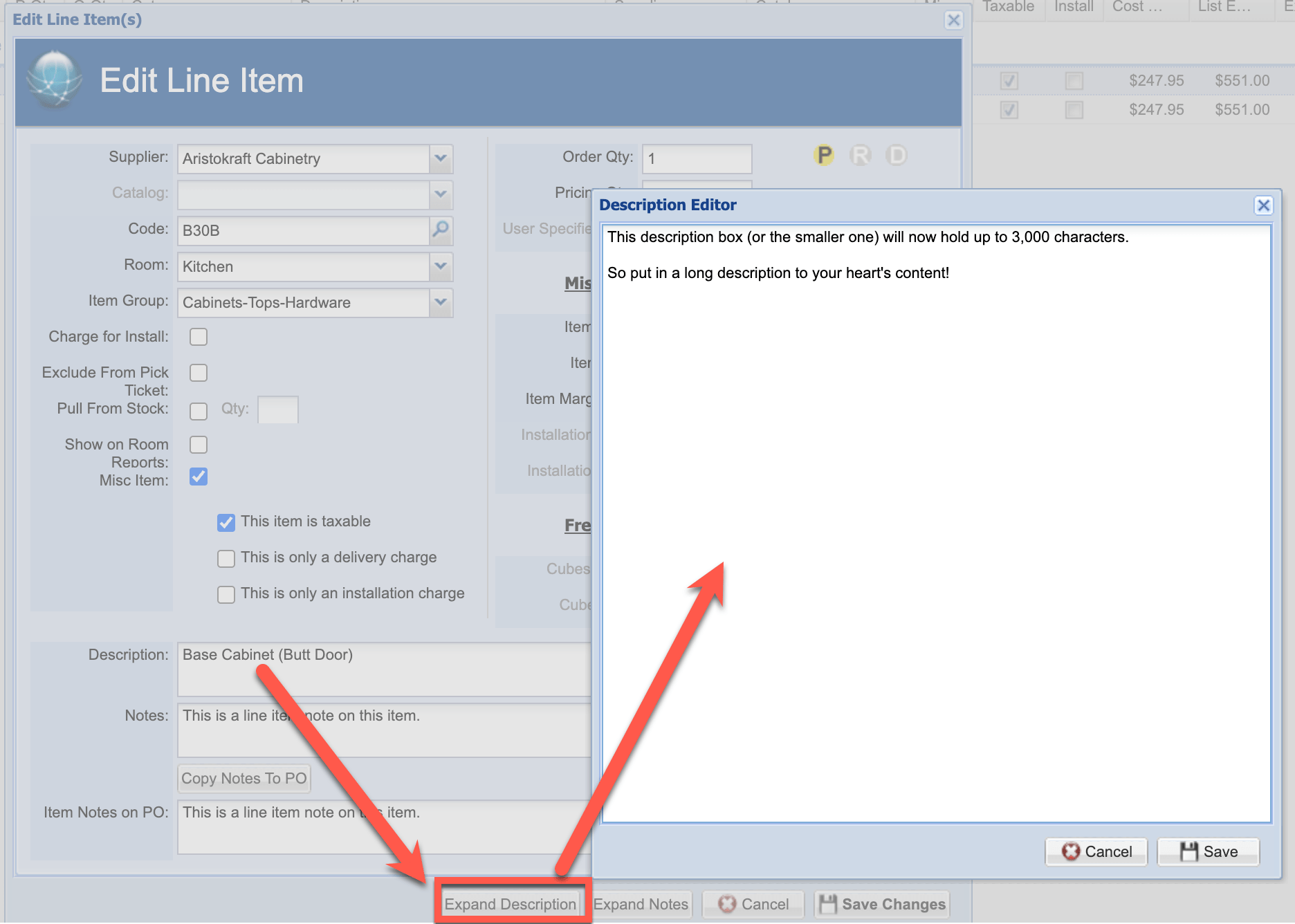
8) Line Item Description Box Expanded to 3,000 Characters
Now when you edit the description of a Misc Item, you can enter up to 3,000 characters in either the small description box, or the expanded one.
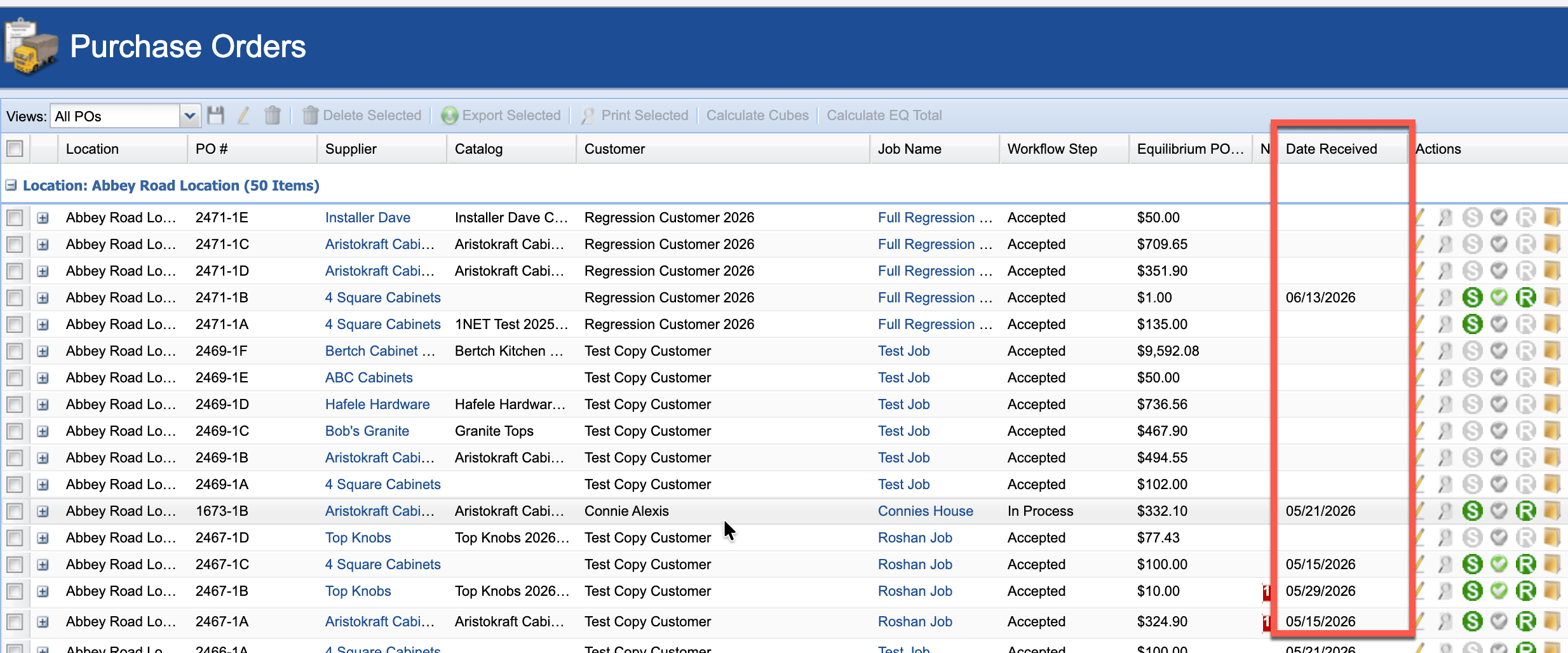
9) We’ve Added the “Date Received” Column to the PO List
On the Purchase Order List, you can now add the “Date Received” column to your view.
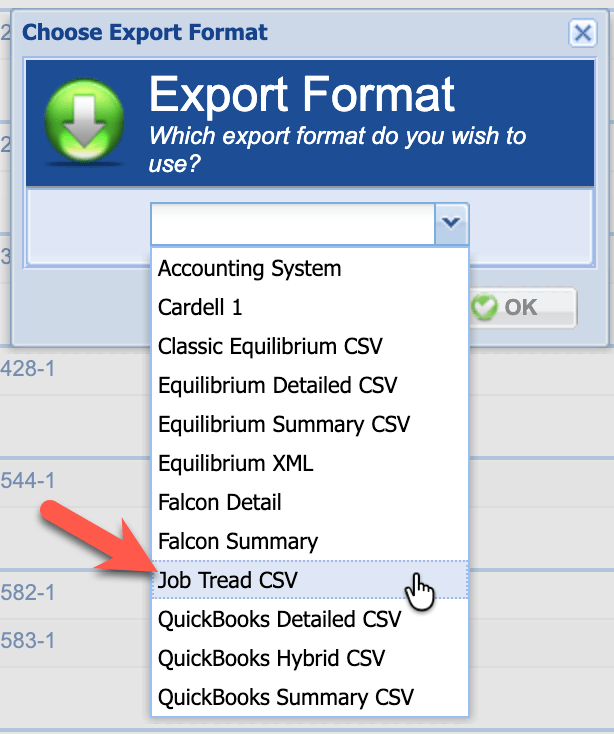
10) New Order Export for Job Tread or Other Systems
We’ve added an Order Export that can be used to import you Order into the Job Tread tracking system.
11) Heading Changes on Pick Tickets
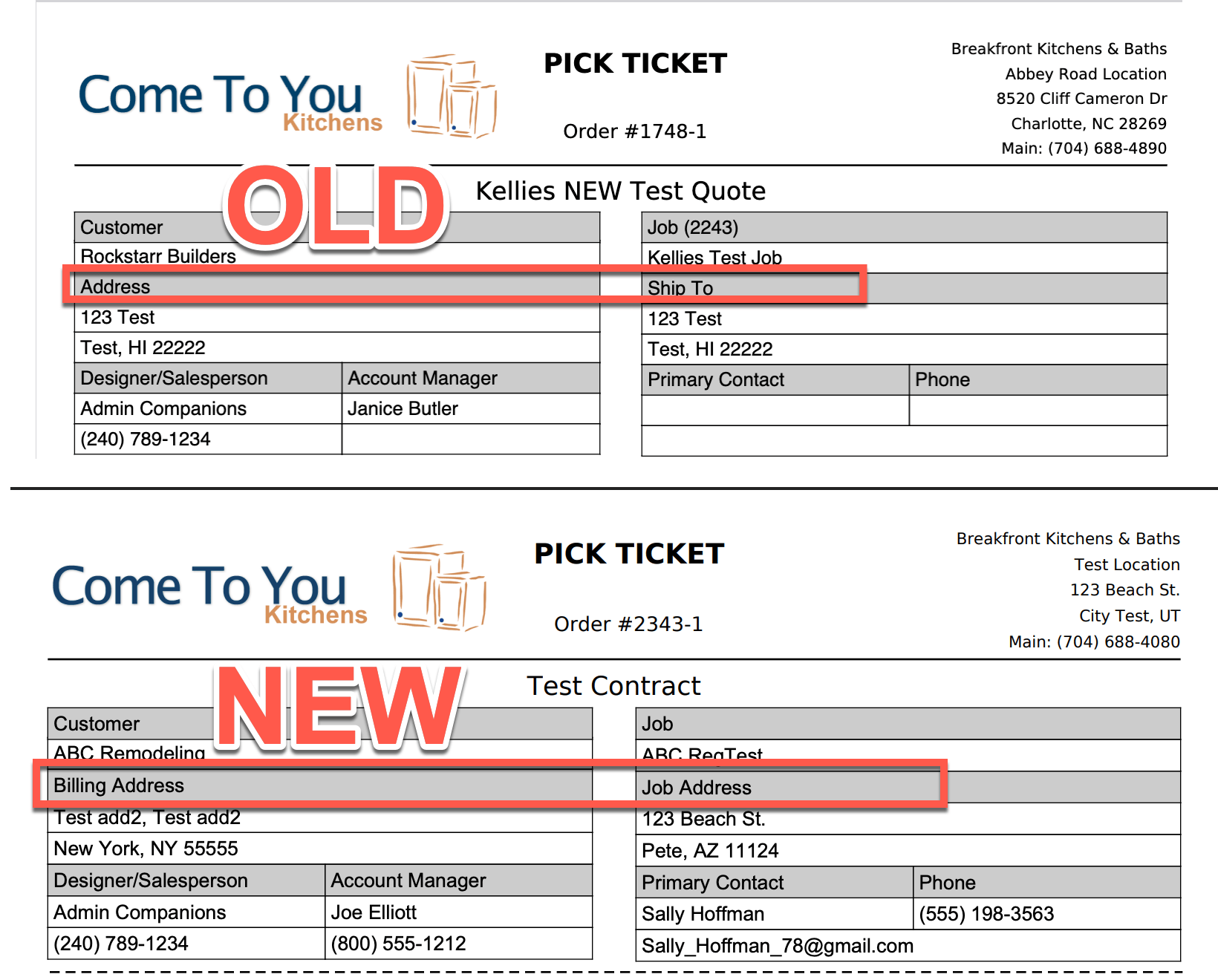
We’ve changed the heading on the Pick Ticket to “Billing Address” and “Job Address” instead of just “Address” and “Ship To” previously.
11) New Setting to Show or Hide Job Number on Proposals/Contracts, etc.
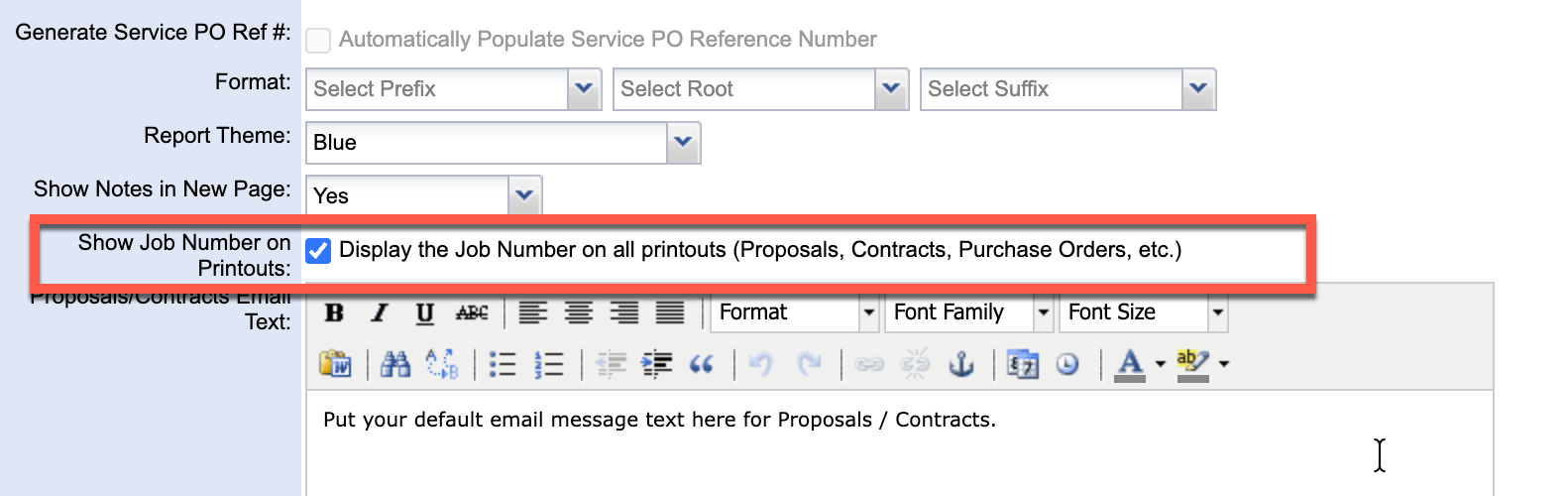
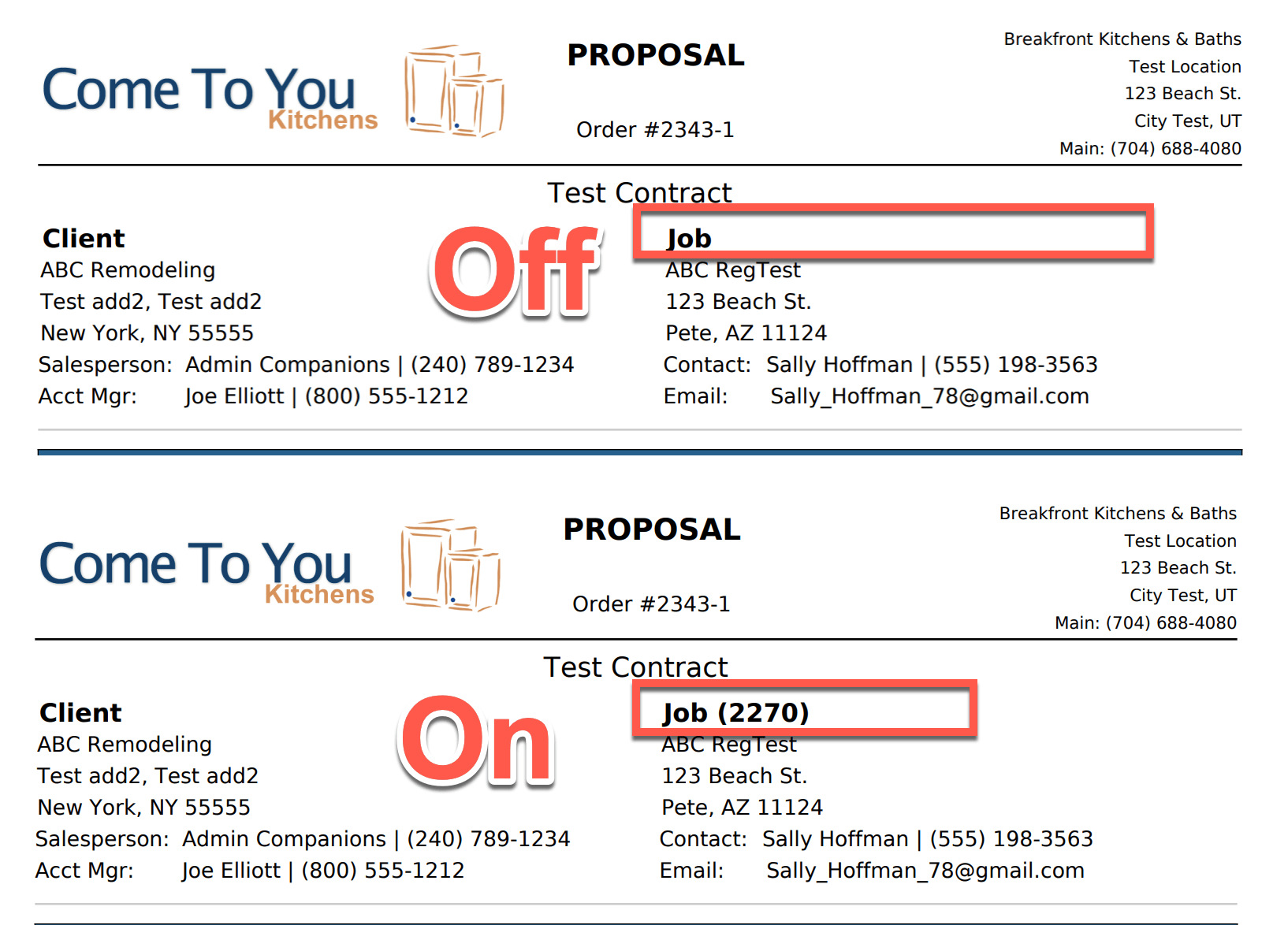
Previously we released an update that shows the EQ Job Number in the Job heading on Proposals and Contract. We’ve now added a setting in Organization Management where you can turn that Job Number off.
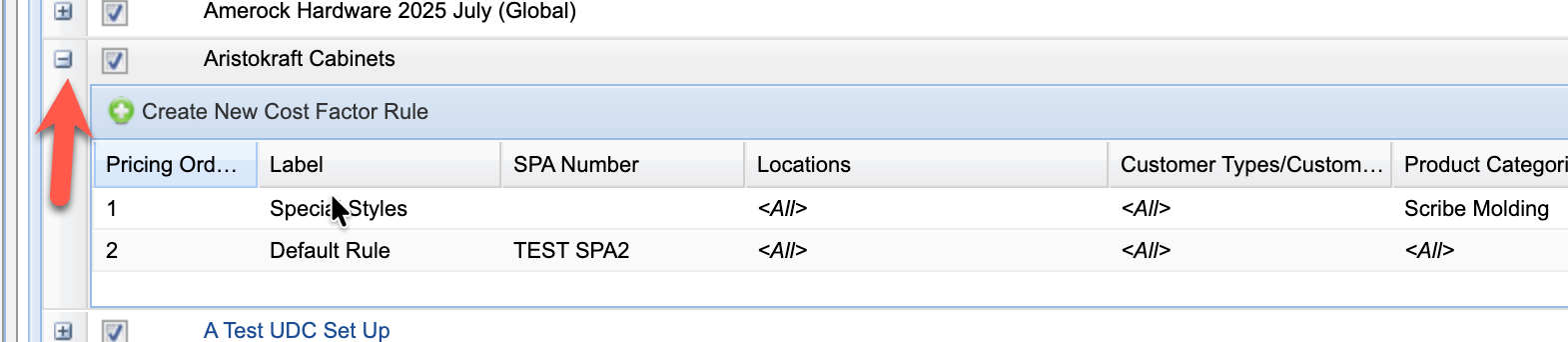
12) We Fixed the Glitch in Cost Factors Where it Would Collapse When Refreshing
When editing Cost Factors previously, it would glitch and collapse the catalog after edit. You would have to re-expand it to continue editing. This is fixed.
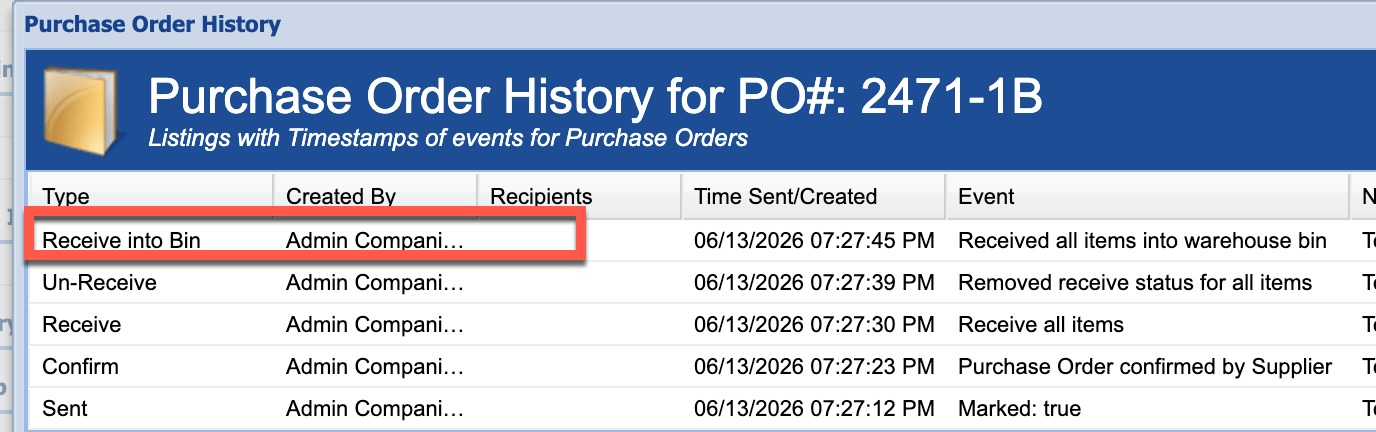
13) Receiving Into Bin Records History Now
Certain places where you would Receive line items (i.e. Receive Into Bin) were not recording a history event. Now all Receiving methods record the history event.
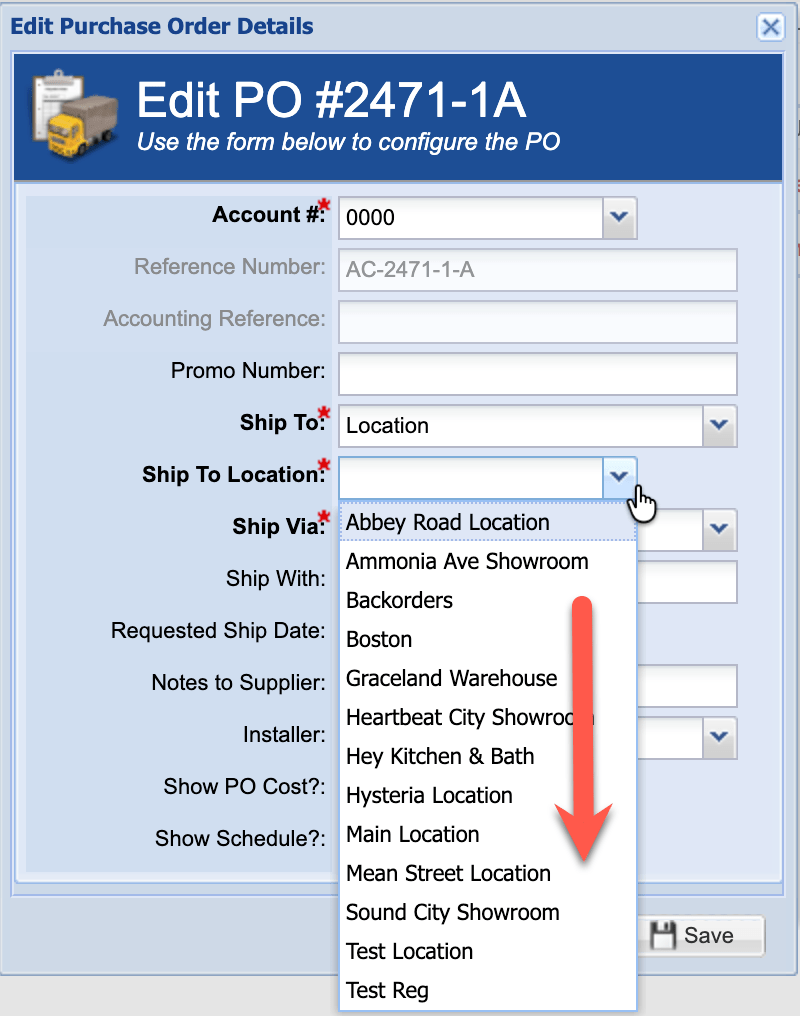
14) The Location List in the “Ship To Location” on a PO Now Sorts the Locations Alphabetically
The Location list in the drop-down was not previously sorted.
15) Net Priced Line Items
We’ve made it so now catalogs can have “Net Priced” Line Items. That means certain Line Items of this type will cost the stated price, ignoring the cost factor for that catalog.
16) Use Tax Related Changes
In various places, corrections have been made when an Order is a “Use Tax” Order. This includes the Proposal/Contract Line Item Printouts (the Line Item Total now includes the Use Tax for that Line Item). It also includes any Order Exports. Now the Exports include the Use Tax related to the totals in them.
17) Other Fixes
1) If you have “Delivery Only” line items that add up to the Delivery charge, now the Line Item Proposals/Contract DO NOT print those Delivery Line Items. This is because they’re already accounted for in the “Delivery” amount at the bottom of the Proposal/Contract.
2) A bug has been fixed when you “Duplicate” a Line Item on a Service Order.
3) A bug has been fixed where the PO List would show the incorrect Workflow Step when you moved a line item to another Order.
We love your feedback! Let us know what you think at support@breakfront.com